Structure Creation
Structures are the fundamental organizational units within a Prose project. Each structure represents a distinct building or structural element that requires load analysis. A project can contain multiple structures, each with its own set of load modules.
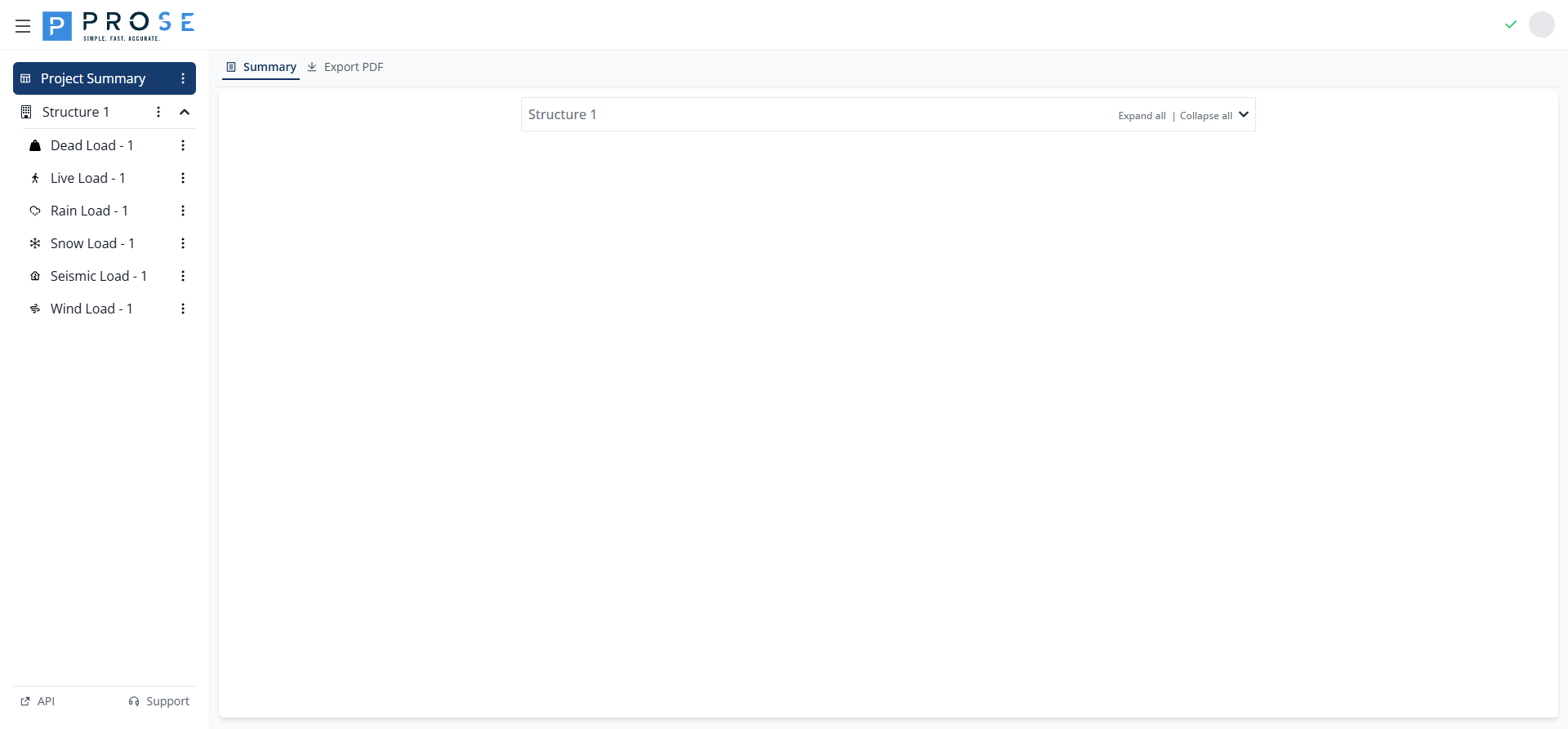
Creating a New Structure
To create a new structure:
- Click the three-dot menu (⋮) next to Project Summary in the sidebar
- Select New Structure from the dropdown menu
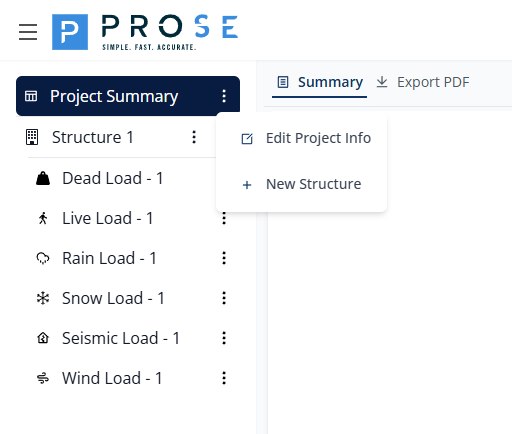
The Structure Information dialog will open, allowing you to configure all structure details.
Structure Information Fields
The Structure Information modal contains the following fields:
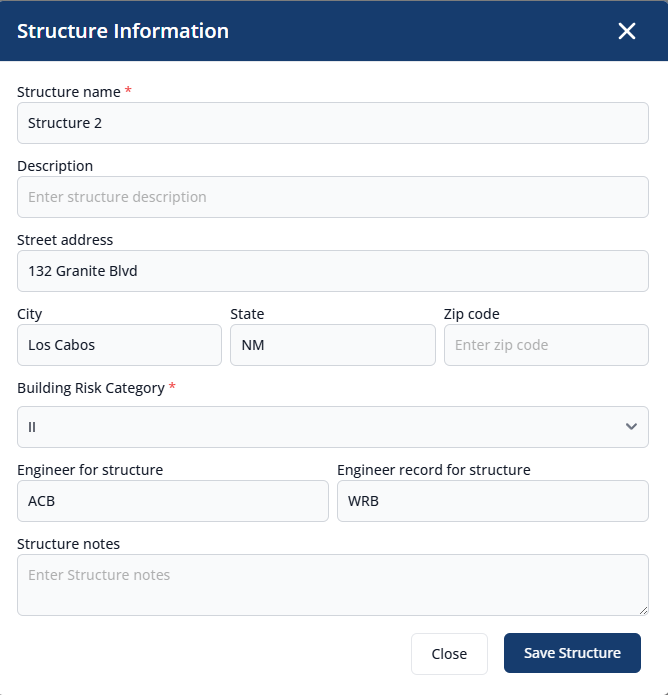
Required Fields
| Field | Description |
|---|---|
| Structure Name | A unique identifier for the structure (e.g., "Main Building", "Warehouse A") |
| Building Risk Category | ASCE 7 risk category (I, II, III, or IV) that determines design load factors |
Optional Fields
| Field | Description |
|---|---|
| Description | Additional details about the structure's purpose or characteristics |
| Street Address | Physical location of the structure |
| City | City where the structure is located |
| State | State or province |
| Zip Code | Postal code |
| Engineer for Structure | Name or initials of the responsible engineer |
| Engineer Record | Engineering record number or reference |
| Structure Notes | Free-form notes about the structure |
Building Risk Category
The Building Risk Category dropdown provides four options per ASCE 7:
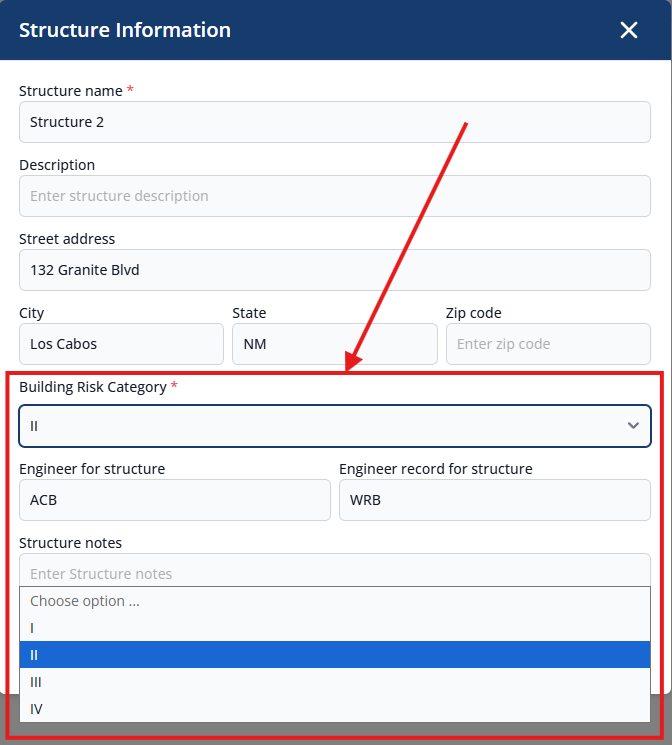
| Category | Description |
|---|---|
| I | Low hazard to human life (agricultural, minor storage) |
| II | Standard occupancy (most buildings) |
| III | Substantial hazard to human life (schools, theaters, detention facilities) |
| IV | Essential facilities (hospitals, fire stations, emergency shelters) |
Saving a Structure
After filling in the required fields:
- Review all entered information
- Click Save Structure to create the structure
- The new structure appears in the sidebar
Managing Existing Structures
Click the three-dot menu (⋮) next to any structure name to access management options:
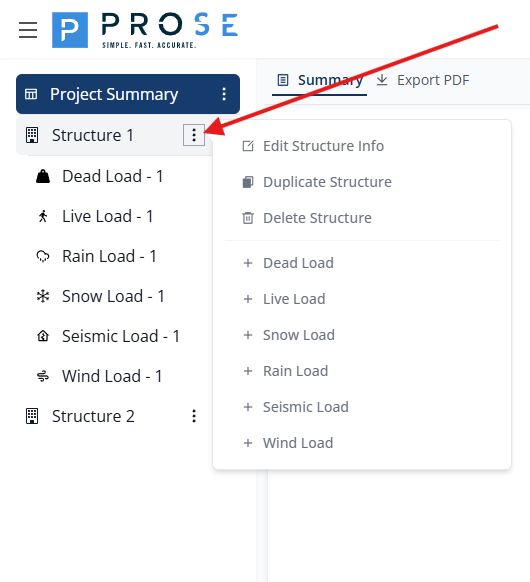
The menu provides:
- Edit Structure Info - Modify structure details
- Duplicate Structure - Create a copy of the structure
- Delete Structure - Remove the structure permanently
- Add Load Modules - Quick access to add Dead, Live, Snow, Rain, Seismic, or Wind load modules
Editing a Structure
To modify an existing structure:
- Click the three-dot menu (⋮) next to the structure name
- Select Edit Structure Info
- Update the desired fields in the modal
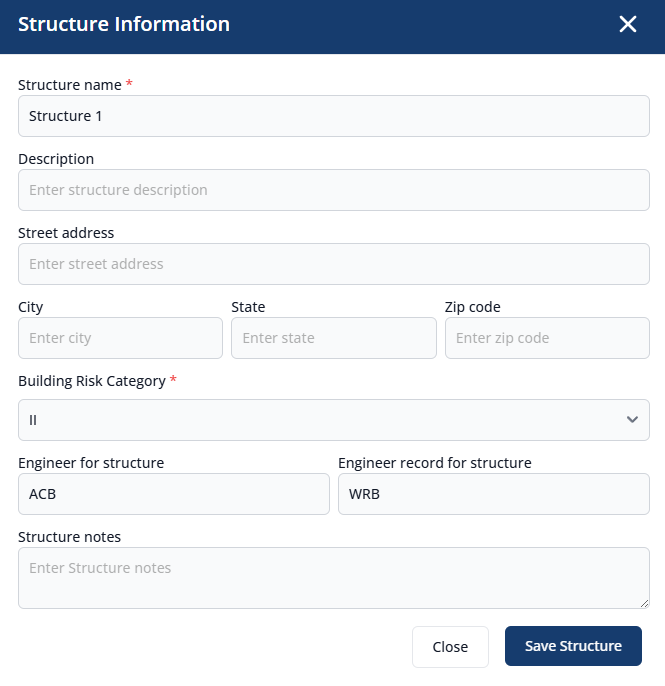
- Click Save Structure to apply changes
Duplicating a Structure
Duplicating creates an exact copy of a structure including all its load modules:
- Click the three-dot menu (⋮) next to the structure name
- Select Duplicate Structure
- A new structure appears with "(Copy)" appended to the name
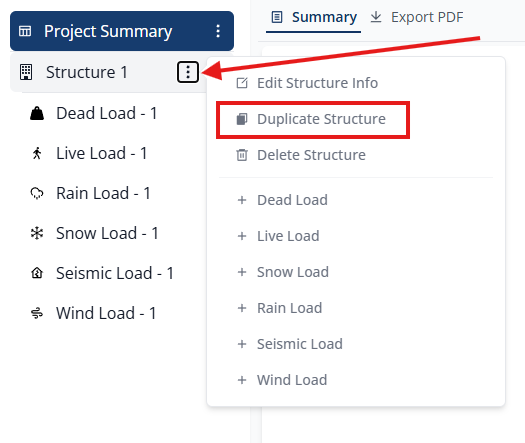
The duplicated structure can be renamed and modified independently of the original.
Deleting a Structure
To permanently remove a structure:
- Click the three-dot menu (⋮) next to the structure name
- Select Delete Structure
- A confirmation dialog appears
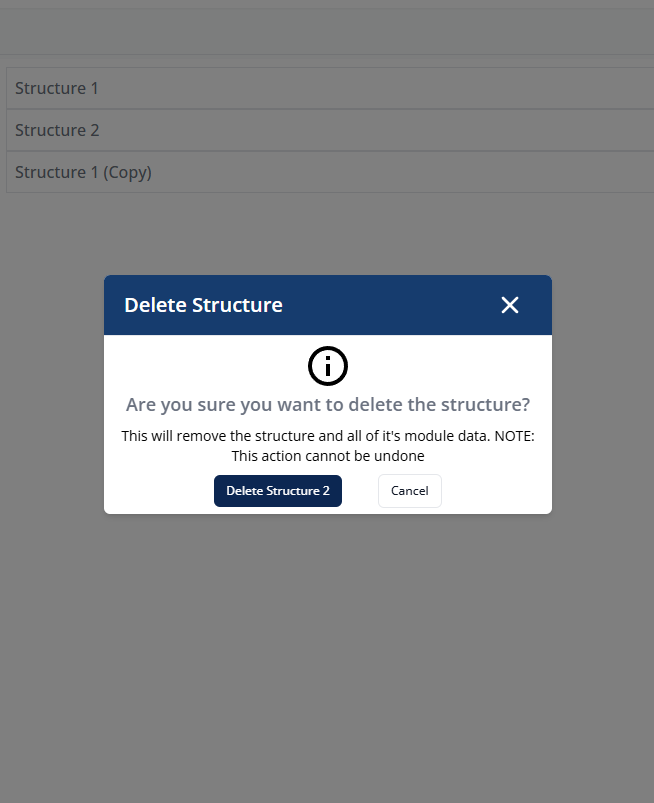
- Click Delete [Structure Name] to confirm deletion
Irreversible Action
Deleting a structure permanently removes it and all associated load modules. This action cannot be undone.
Adding Load Modules
Once a structure is created, add load modules to perform analysis:
- Click the three-dot menu (⋮) next to the structure name
- Select the desired load type from the menu:
- Dead Load
- Live Load
- Snow Load
- Rain Load
- Seismic Load
- Wind Load
Each load module is added to the structure and appears in the sidebar for configuration.
Next Steps
With your structure created, proceed to add and configure load modules:
-
Dead Loads
Permanent structural and non-structural loads
-
Live Loads
Occupancy and usage loads
-
Rain Loads
Ponding and drainage considerations
-
Snow Loads
Ground snow and drifting effects
-
Seismic Loads
Earthquake design and analysis
-
Wind Loads
Wind pressure and directionality