Dead Loads
The Dead Load module provides an assembly-based approach to calculating building component weights. Build assemblies by selecting materials from an extensive library for accurate, documented, and repeatable dead load calculations.
Key Features
- Assembly-based organization for building components (roofs, walls, floors)
- Extensive material library with 200+ pre-defined items organized by category
- Custom material creation for project-specific components
- Bulk import from CSV, TSV, or Excel spreadsheets
- Automatic weight summation in pounds per square foot (psf)
- Organization-wide material library sharing
- Professional PDF export with project branding
Getting Started
- Navigate to your structure in the left sidebar
- Click the three-dot menu and select Add Module
- Choose Dead Load from the module list
- Click Add Assembly to create your first assembly
- Search or browse the material library to add components
- Name your assembly and click Save Assembly
Assembly Management
Assemblies represent distinct building components (e.g., "Typical Roof Load", "Exterior Walls"). Each assembly contains multiple materials with individual weights that sum to a total weight in pounds per square foot (psf).
Adding Assemblies
- Click Add Assembly on the main Dead Load page
- The Assembly Editor opens with access to the material library
- Search or browse for materials to add
- Name your assembly descriptively (e.g., "Typical Roof Load")
- Click Save Assembly
Editing Assemblies
Click Edit Assembly next to any assembly in the summary view to open the Assembly Editor.
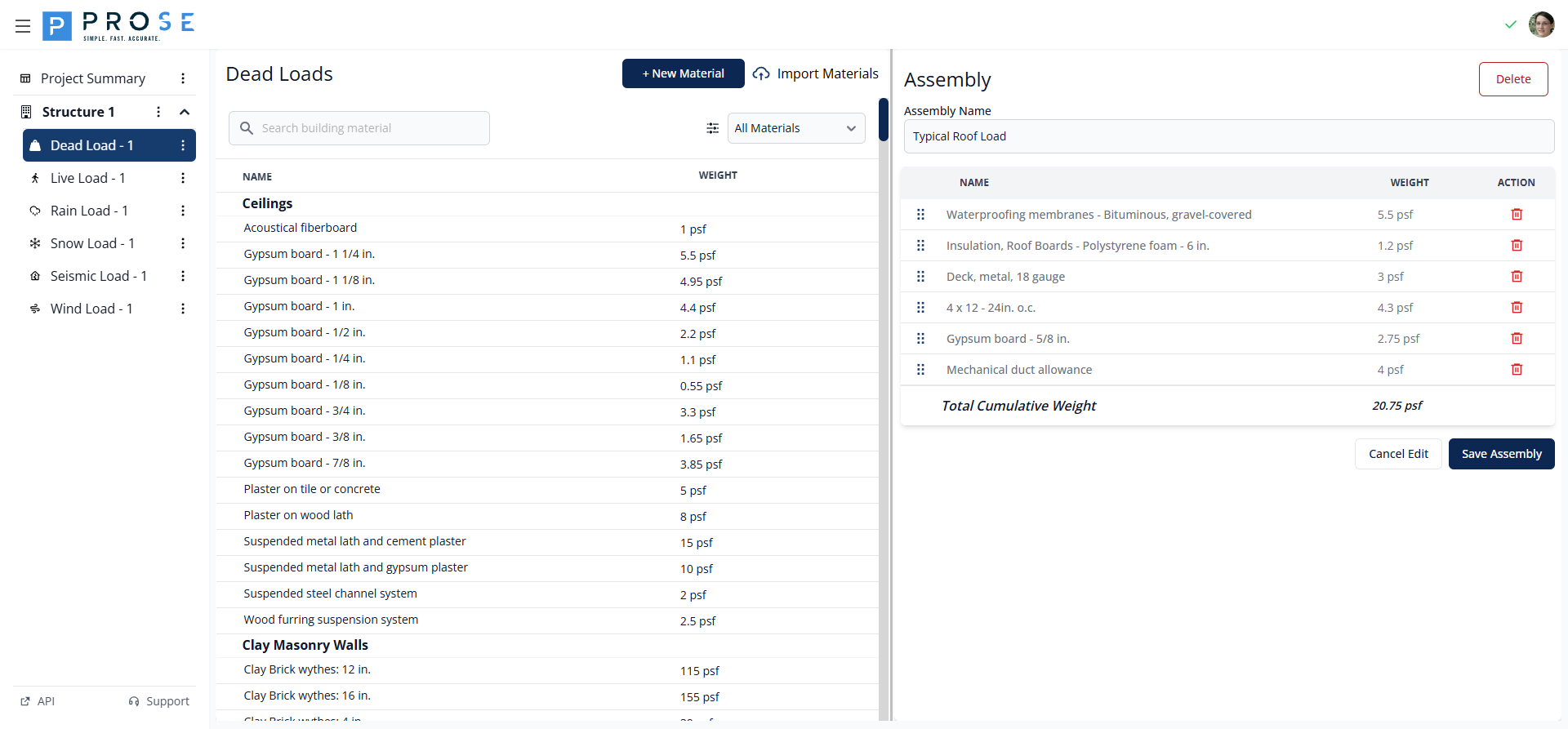
In the editor you can:
- Add materials from the library by clicking on them
- Remove materials using the trash icon
- Reorder materials by dragging the handle icon
- Rename the assembly using the name field
- Delete the entire assembly using the Delete button
Assembly Editor Features
| Element | Description |
|---|---|
| Assembly Name | Editable text field for identification |
| Material List | Shows all materials with names and weights |
| Drag Handles | Reorder materials by dragging |
| Remove Buttons | Delete individual materials |
| Total Weight | Automatically calculated sum in psf |
Deleting Assemblies
- Click Edit Assembly to open the Assembly Editor
- Click the Delete button at the bottom of the editor
- Confirm the deletion when prompted
Permanent Action
Deleting an assembly removes it and all its materials from your project. This action cannot be undone.
Material Library
The module includes an extensive library of construction materials organized by category.
Material Categories
- Acoustical fiberboard
- Gypsum board (various thicknesses)
- Plaster types
- Suspended systems
- Clay brick wythes (4", 8", 12", 16")
- Concrete masonry (4" - 12")
- Light, normal, and heavy weight options
- Various grout configurations
- Metal decking (various gauges)
- Wood decking
- Insulation types
- Roofing materials
- Waterproofing membranes
- Floor fill materials
- Tile and terrazzo
- Hardwood flooring
- Subflooring options
- Wood framing (2x4 through 4x16)
- Various spacings (12", 16", 19.2", 24" o.c.)
- Frame partitions and walls
Searching Materials
Use the search box for instant filtering as you type. For example, typing "deck" shows only materials containing that term.
Filtering by Type
Use the dropdown menu to filter materials:
- All Materials: Default and custom materials
- Default Materials: Pre-built library only
- Custom Materials: User-created materials only
Adding Materials
Create custom materials for project-specific components not in the default library.
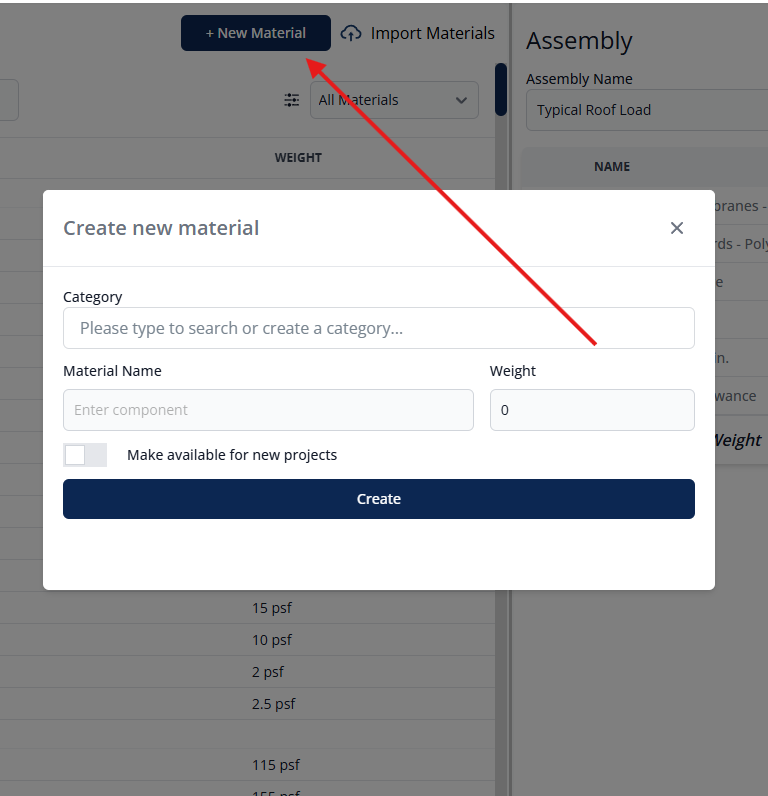
- Click + New Material in the material library panel
- Category: Search existing categories or create a new one
- Material Name: Enter a descriptive name
- Weight: Enter weight in psf (minimum 0.01)
- Make available for new projects: Check to add to your organization's default library
- Click Create
Organization Library
Materials marked "available for new projects" become part of your organization's default material library for all future projects.
Editing Materials
Custom materials can be modified after creation:
- Locate the custom material in the library (filter by "Custom Materials")
- Click the edit icon next to the material
- Modify the category, name, or weight as needed
- Click Save to apply changes
Default Materials
Pre-built library materials cannot be edited. Create a custom material with your preferred values instead.
Deleting Materials
Remove custom materials that are no longer needed:
- Locate the custom material in the library
- Click the delete icon next to the material
- Confirm the deletion when prompted
Materials in Use
Materials currently used in assemblies cannot be deleted. Remove them from all assemblies first.
Bulk Import
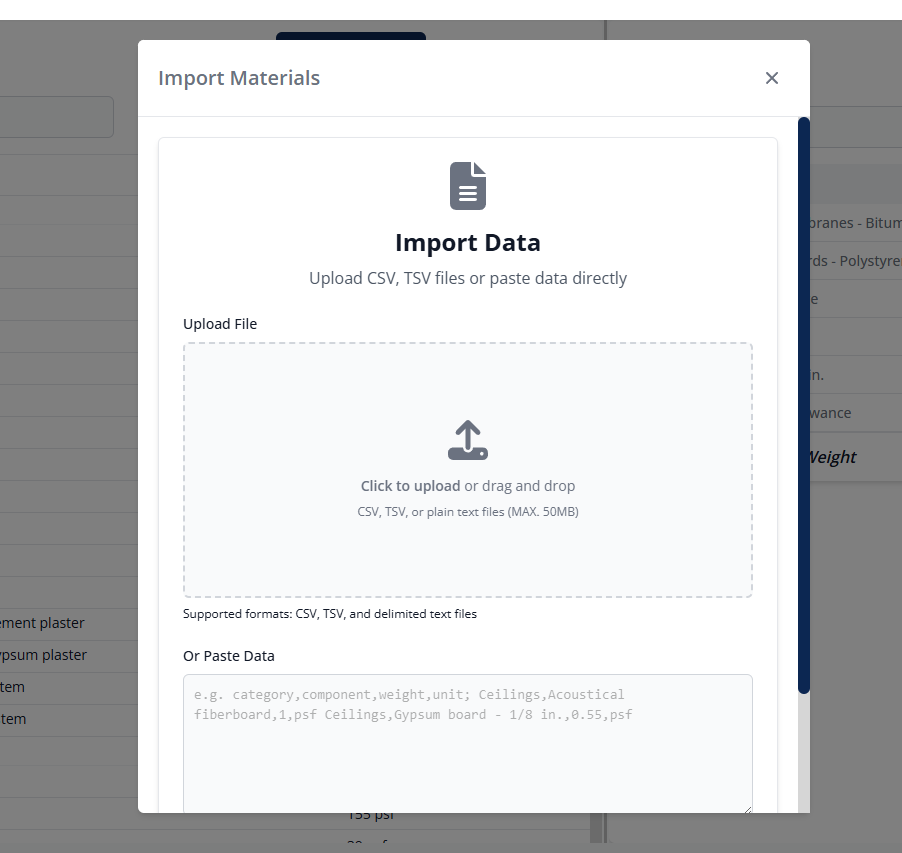
Import multiple materials at once from spreadsheet data.
Import Process
-
Click Import Materials
-
Choose your import method:
- Upload file: CSV, TSV, or Excel files
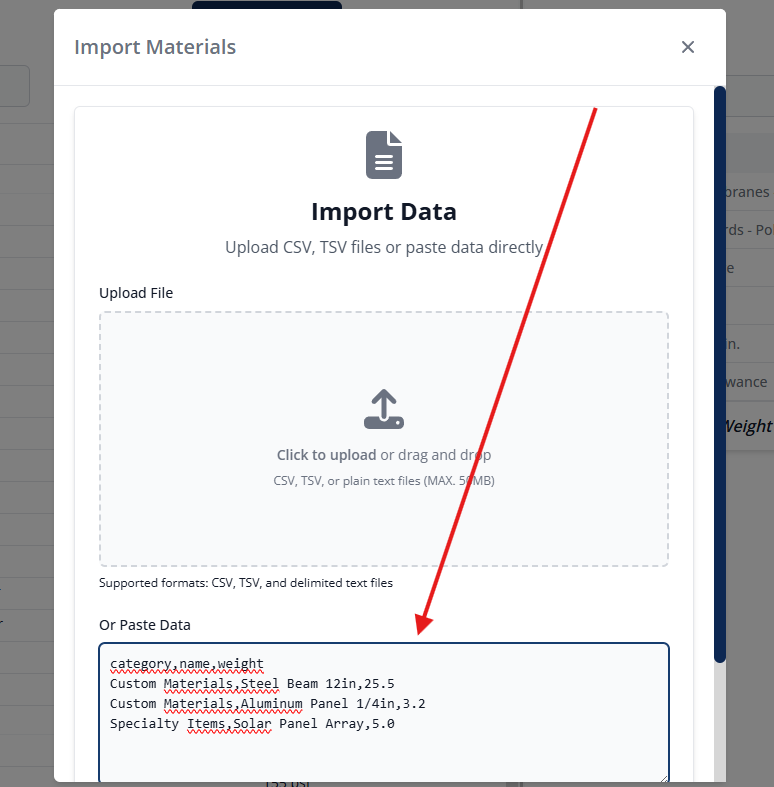
- Paste data: Copy directly from spreadsheet
-
Paste or upload your data
-
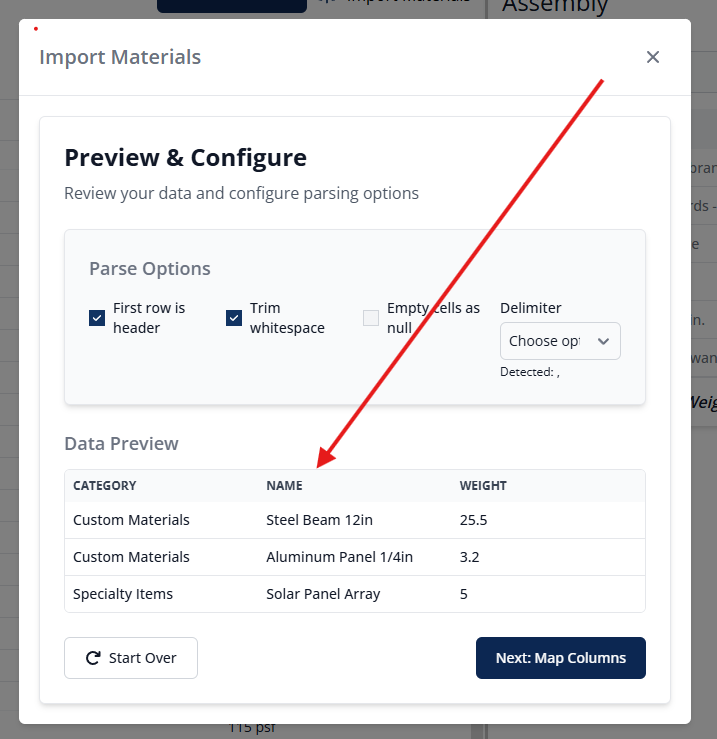
Configure parse options and preview
-
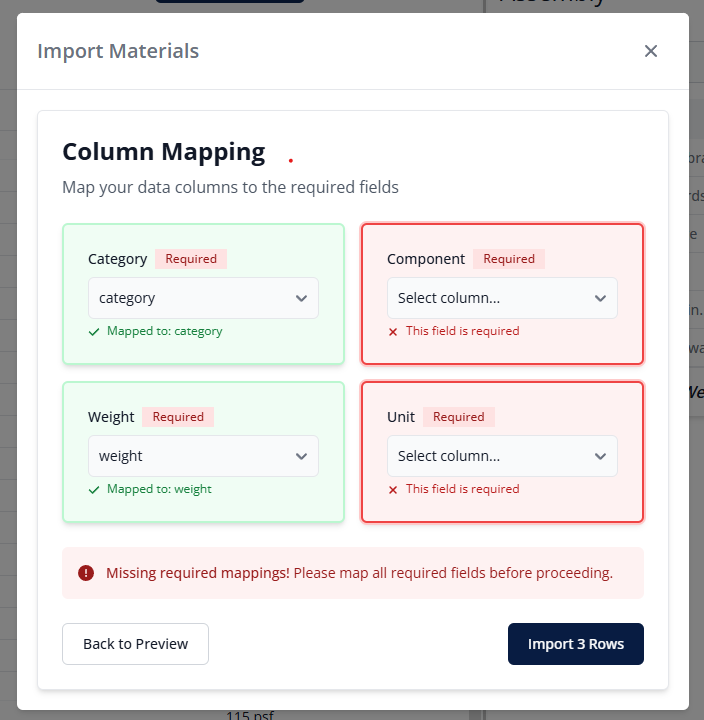
Map columns to required fields
Required Columns
| Column | Description |
|---|---|
| Category | Material category name |
| Component | Material name |
| Weight | Numeric weight value |
| Unit | Unit of measurement (psf) |
Sample Import Data
category,component,weight,unit
Custom Materials,Steel Beam 12in,25.5,psf
Custom Materials,Aluminum Panel 1/4in,3.2,psf
Specialty Items,Solar Panel Array,5.0,psf
Mechanical,HVAC Equipment Allowance,8.0,psf
Summary View
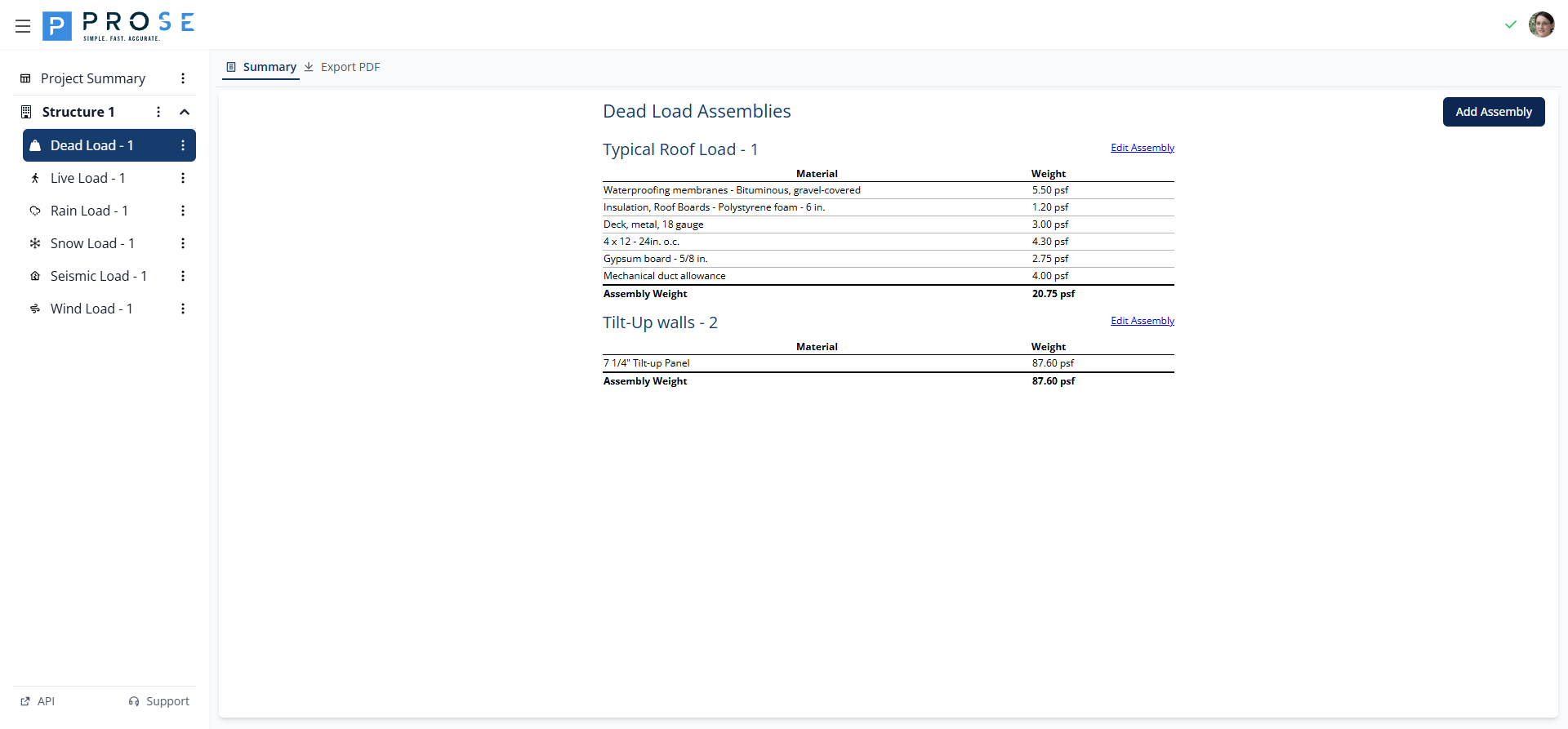
The Summary View displays all assemblies and their total weights in a consolidated table format.
The summary includes:
- Assembly Name: Descriptive identifier for each assembly
- Total Weight (psf): Sum of all material weights in the assembly
- Edit Button: Quick access to modify assembly contents
Use the Summary View to review all dead load assemblies before exporting to PDF or applying loads to your structural analysis.
PDF Export
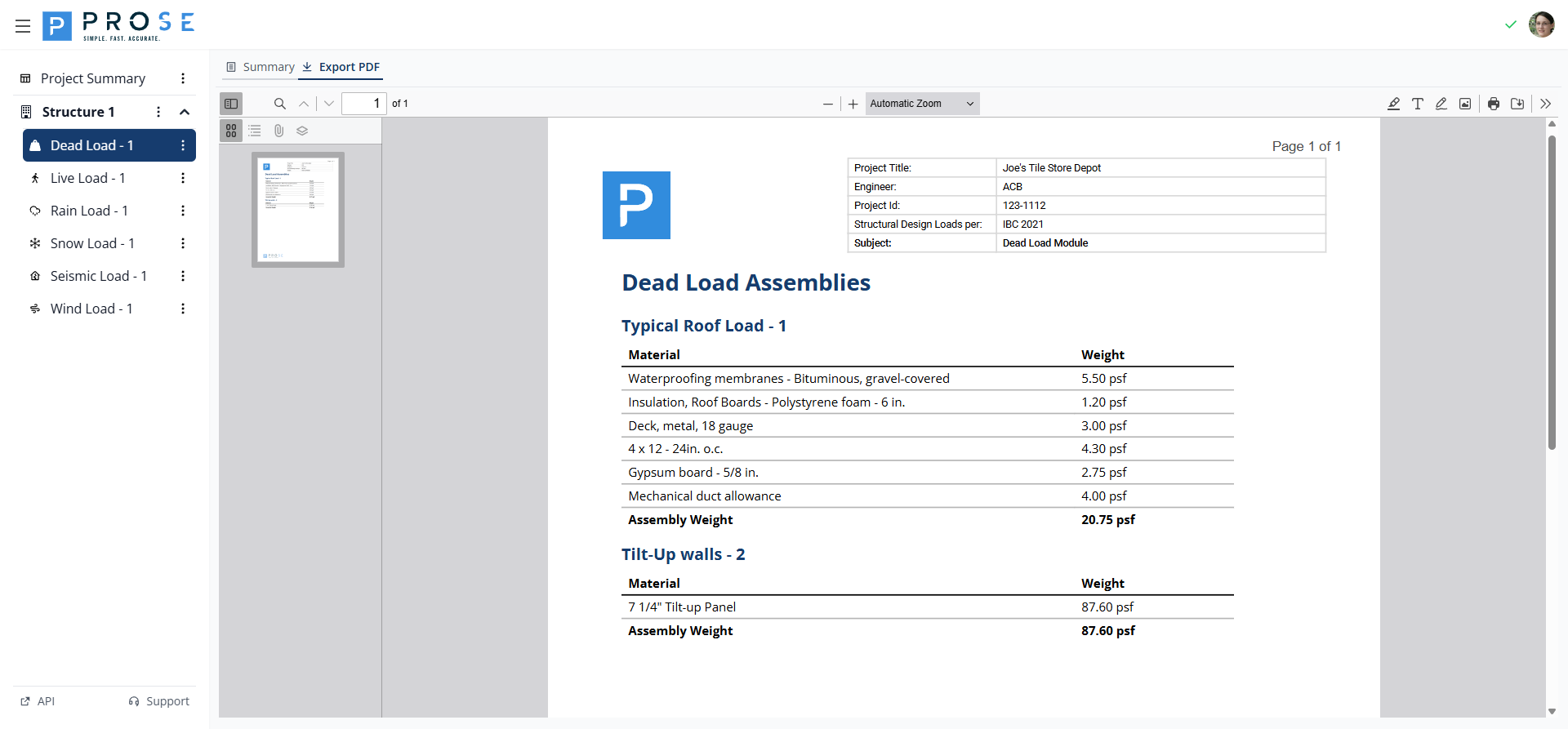
Generate professional documentation of your dead load assemblies.
Generating a PDF
- Click the Export PDF tab
- Review the generated PDF in the viewer
- Use viewer controls to zoom or navigate
- Click Save to download
PDF Contents
- Project header with title, engineer, ID, and design code
- Company branding
- Complete assembly breakdown
- Individual material weights
- Cumulative assembly weights
- Page numbering
Best Practices
See Also
For a complete load analysis workflow, see the Common Workflows guide which covers coordinating dead loads with other load types.
Assembly Organization
- Create separate assemblies for distinct building components
- Use clear, descriptive names
- Group similar materials together
- Order materials as they appear in construction (top to bottom)
Material Selection
- Verify weights match project specifications
- Use search to quickly find materials
- Create custom materials for specialty components
- Include mechanical allowances where applicable
Partition Loads
Per ASCE 7-16 Section 4.3.2, use a minimum partition load of 15 psf where actual partition layouts are unknown or subject to change.
Quality Control
- Review cumulative weights for reasonableness
- Compare to typical values for similar assemblies
- Document assumptions in assembly names
- Export PDFs for record keeping
Code Reference
Dead load requirements per ASCE 7-16 and IBC:
- ASCE 7-16 Section 3.1: Dead loads shall be based on actual weights of materials and construction
- ASCE 7-16 Section 4.3.2: Minimum partition load of 15 psf where actual weight is unknown
- IBC Section 1606: Equipment loads shall include weight of equipment, supports, and attached systems
- ASCE 7-16 Section 2.3.1: Load factors: 1.2D (load increase) or 0.9D (load decrease)
The assembly-based approach ensures compliance by using actual material weights from industry-standard sources.