Live Loads
The Live Load module provides a library-based approach to selecting live loads based on ASCE 7-22 Table 4.3-1 (Minimum Uniformly Distributed Live Loads). Instead of manually entering load values, you select occupancy types from a comprehensive library that includes uniform loads, concentrated loads, and load reduction permissions.
Key Features
- Complete ASCE 7-22 Table 4.3-1 occupancy library
- Uniform and concentrated load values from code
- Automatic tracking of live load reduction permissions
- Multi-story reduction tracking
- Real-time search across all occupancy types
- Category-based organization matching ASCE 7 structure
- Professional PDF export with project details
Getting Started
- Navigate to your structure in the left sidebar
- Click the three-dot menu and select Add Module
- Choose Live Load from the module list
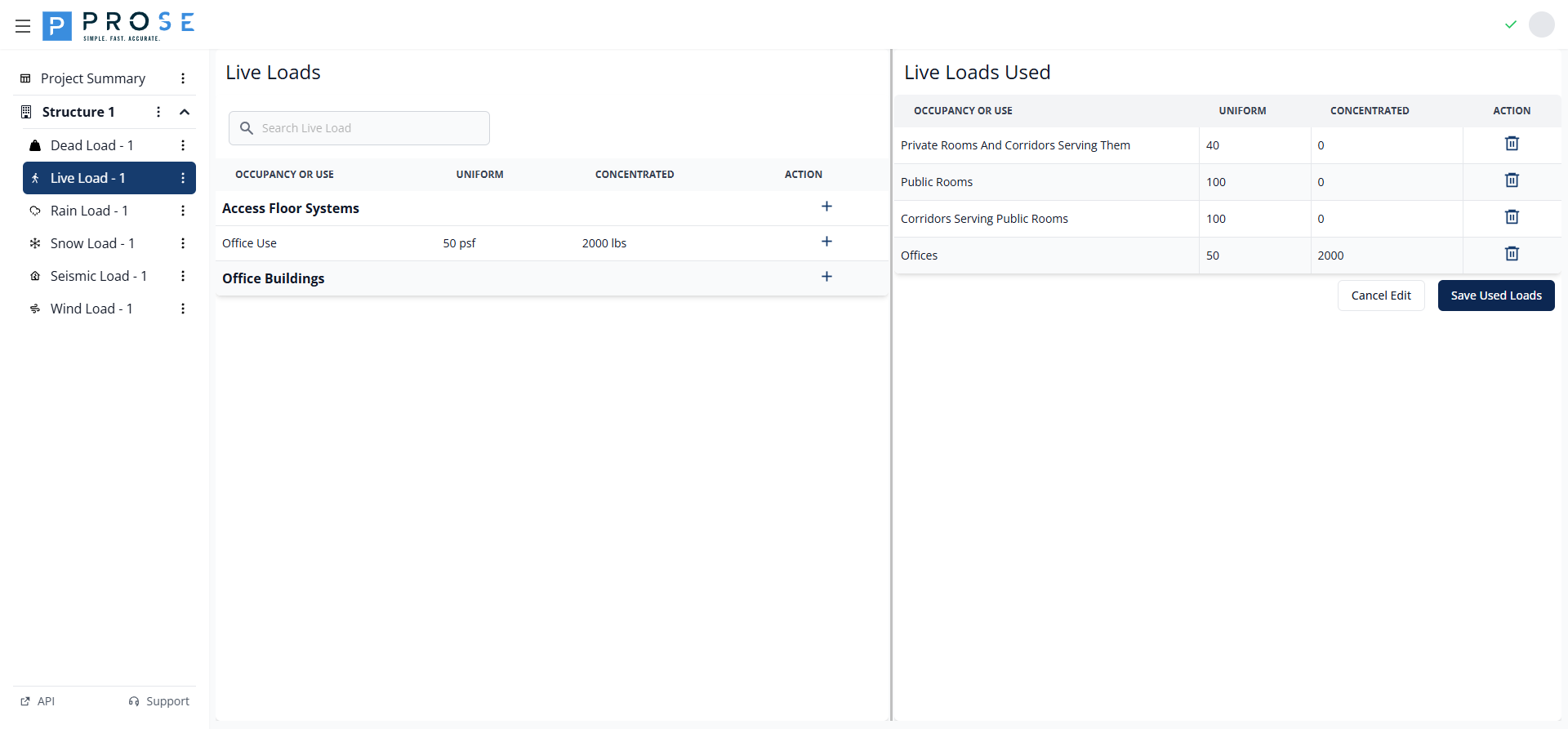
- Click Edit Live Loads Used to open the occupancy library
- Search or browse for occupancy types matching your project
- Click Add Live Load or Add Category to select loads
- Click Save Used Loads to apply your selections
Summary View
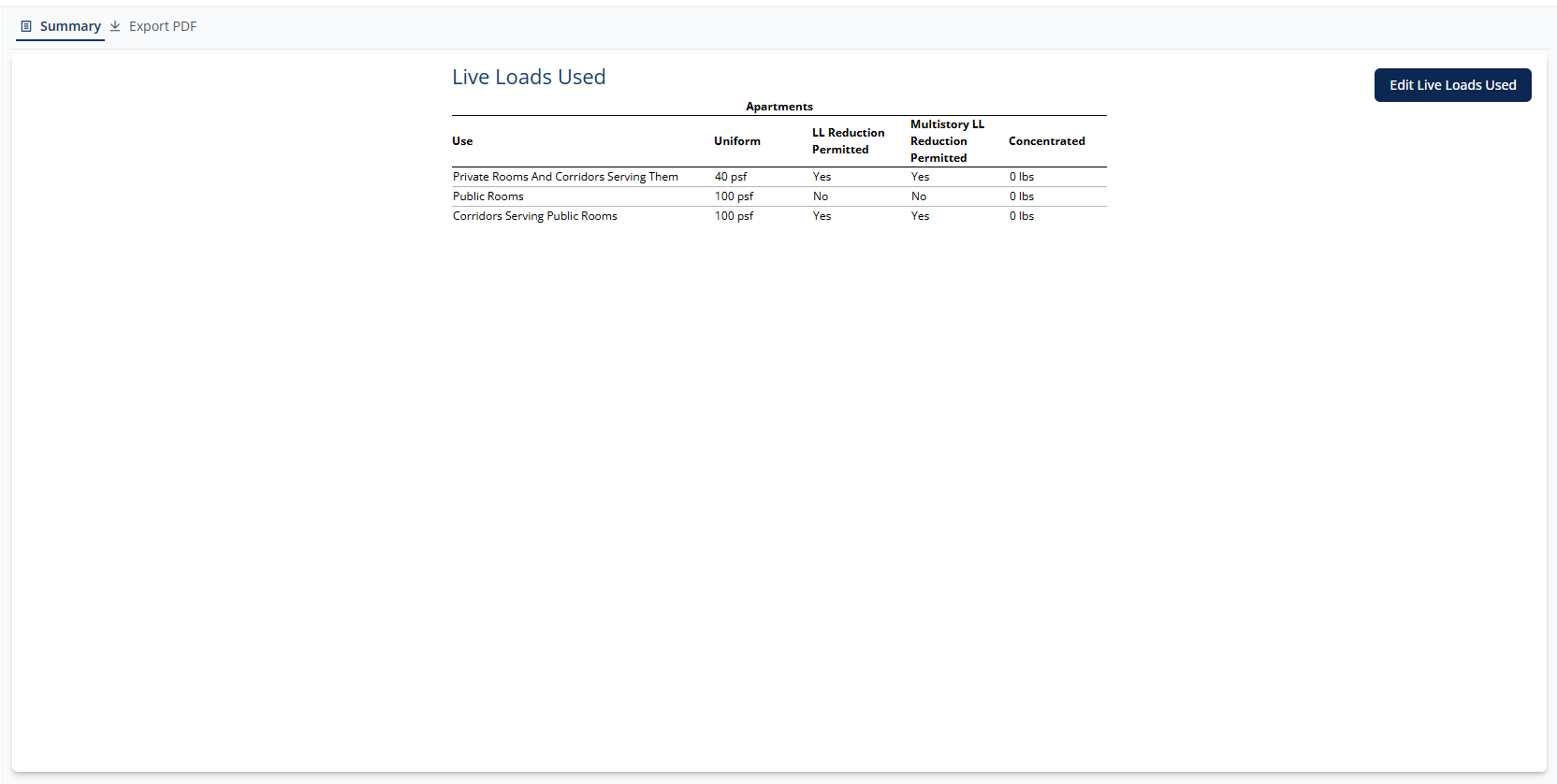
The summary view displays all selected live loads for your project, organized by occupancy category. Each entry shows:
- Use: Specific occupancy or use type from ASCE 7
- Uniform Load: Uniformly distributed load in psf
- LL Reduction Permitted: Whether load reduction is allowed per ASCE 7
- Multistory LL Reduction Permitted: Whether multistory reduction applies
- Concentrated Load: Point load value in pounds
Click Edit Live Loads Used to modify your selections or add additional occupancy types.
Occupancy Library
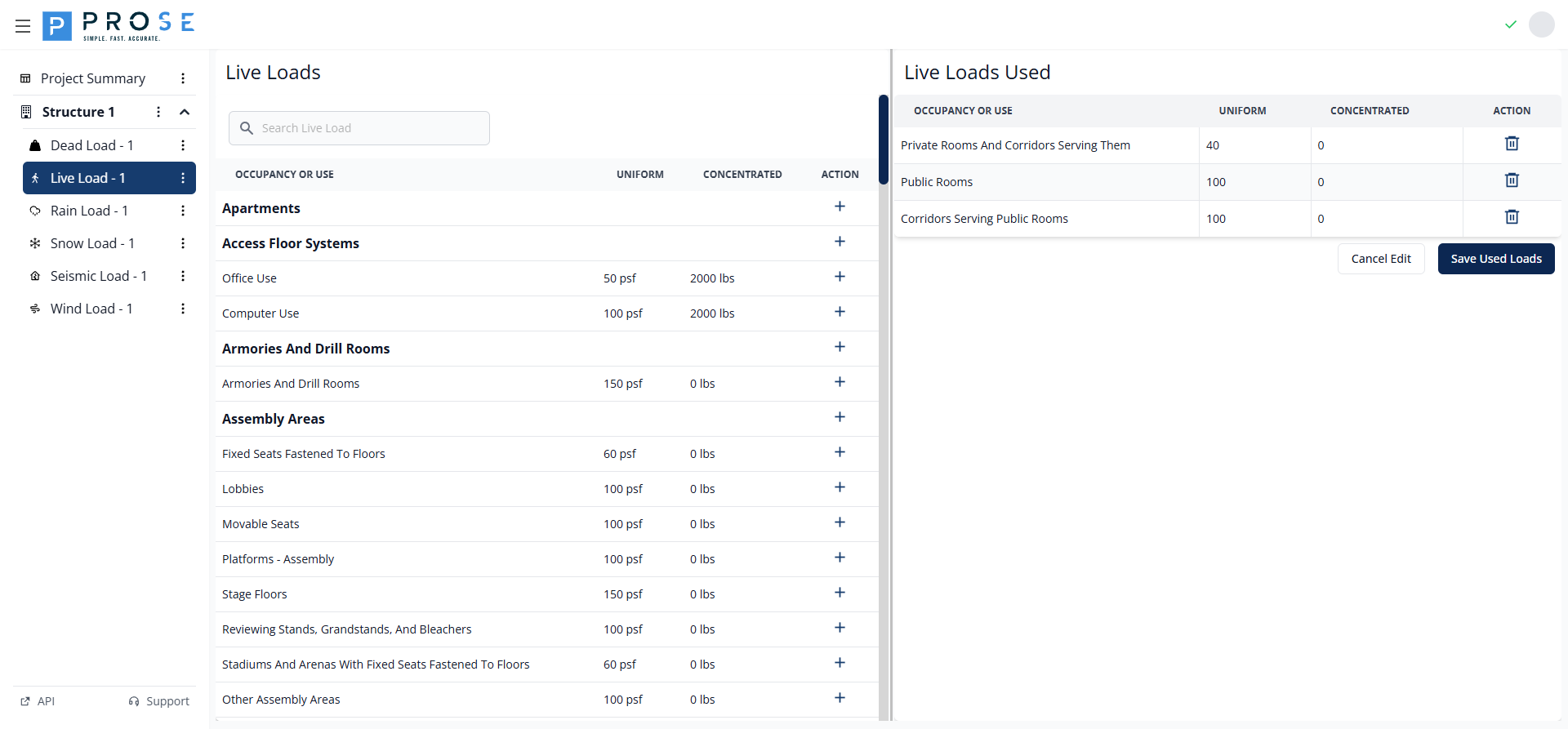
The Live Load editor provides access to the complete ASCE 7-22 Table 4.3-1, organized by occupancy category. The library includes dozens of categories with specific use cases.
Major Occupancy Categories
- Apartments
- Hotels
- One and Two-Family Dwellings
- Residential - All Other
- Assembly Areas (Fixed/Movable Seats)
- Dining Rooms and Restaurants
- Stages and Platforms
- Reviewing Stands and Bleachers
- Office Buildings
- Schools and Classrooms
- Libraries (Reading Rooms and Stacks)
- Corridors (Various types)
- Hospitals (Operating Rooms, Patient Rooms)
- Hospital Corridors
- Penal Institutions
- Storage Warehouses (Light/Heavy)
- Manufacturing (Light/Heavy)
- Stores - Retail (First Floor/Upper Floors)
- Stores - Wholesale
- Ordinary Flat, Pitched, and Curved Roofs
- Vegetative and Landscaped Roofs
- Awnings and Canopies
- Roofs for Occupancy/Assembly
- Garages (Passenger Vehicles/Trucks)
- Helipads (Various weight classes)
- Access Floor Systems
- Catwalks and Walkways
- Bowling Alleys and Poolrooms
- Dance Halls and Ballrooms
- Gymnasiums
- Armories and Drill Rooms
- Balconies and Decks
- Fire Escapes
- Stairs and Exit Ways
- Handrails and Guardrails
- Sidewalks and Vehicular Driveways
Each occupancy type includes code-specified values for uniform loads (psf), concentrated loads (lbs), and information about live load reduction permissions.
Search Functionality
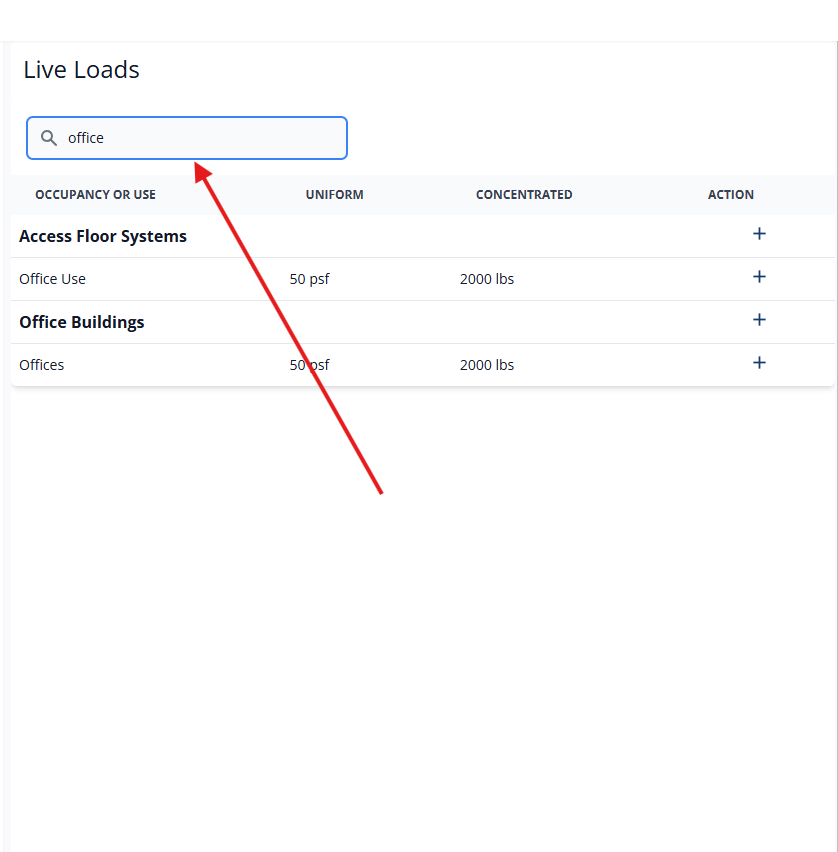
The real-time search box allows quick filtering of occupancy types. For example, typing "office" instantly filters to show only office-related occupancies such as "Office Use" and "Office Buildings."
Search tips:
- Search is case-insensitive
- Matches against occupancy names and use descriptions
- Results update instantly as you type
- Use general terms like "residential", "storage", or "roof" to find related categories
Live Load Management
Manage your project's live load selections through the Live Load editor.
Adding Live Loads
- Click Edit Live Loads Used from the summary view
- Browse or search for the desired occupancy type in the library (upper section of the editor)
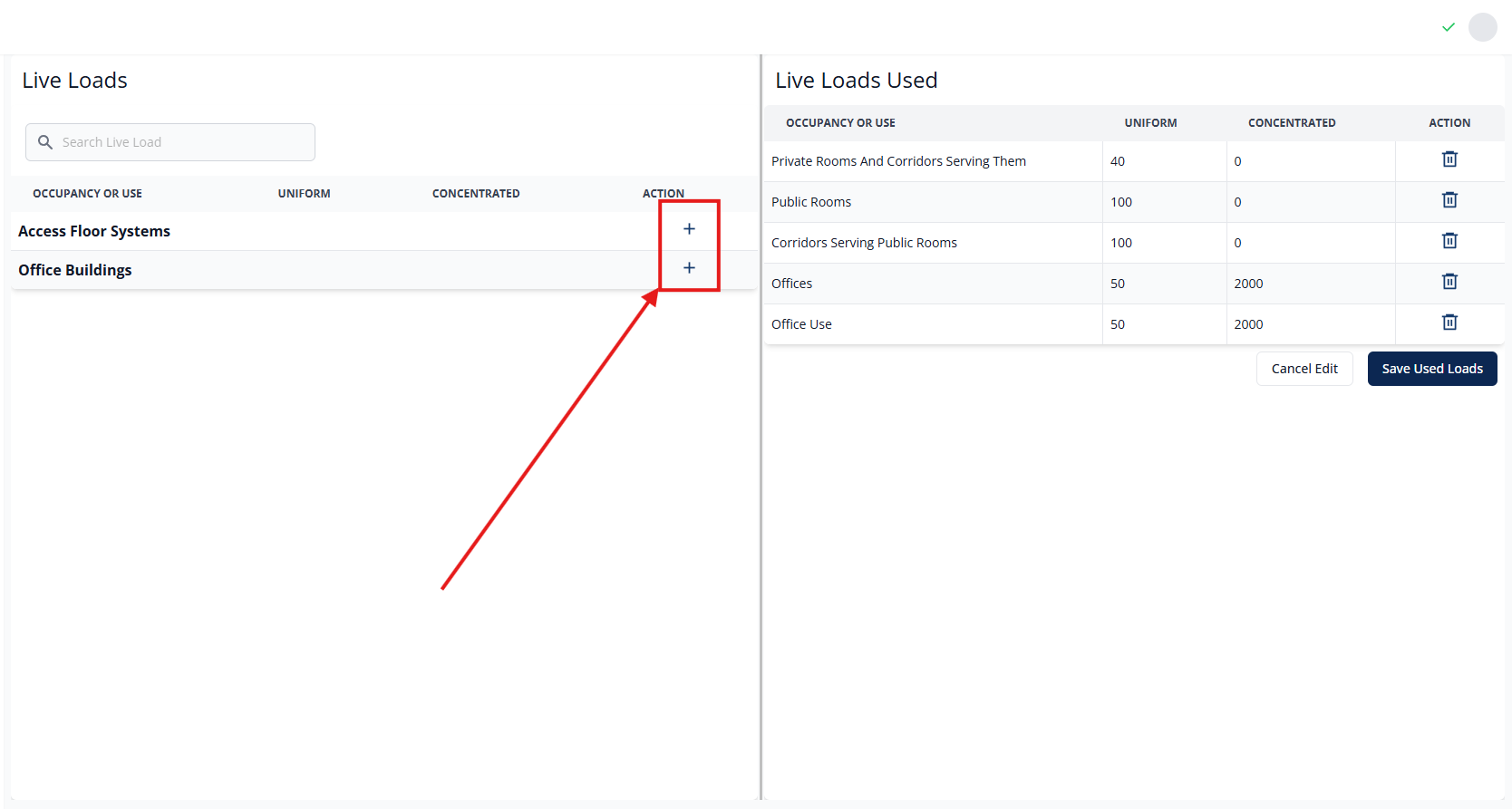
- Click Add Live Load or Add Category next to the item
- The selected load appears in the Live Loads Used section (lower section)
- Repeat to add multiple occupancy types
- Click Save Used Loads to commit your selections
- Or click Cancel Edit to discard changes
Adding Individual vs. Category
- Add Live Load: Adds a specific occupancy use (e.g., "Office Use - 50 psf")
- Add Category: Adds all occupancy types within a category (e.g., all "Office Buildings" occupancies)
Editing Live Loads
Modify your live load selections at any time:
- Click Edit Live Loads Used from the summary view
- The editor displays your current selections in the Live Loads Used section
- Add new occupancy types from the library as needed
- Remove unwanted loads using the remove button next to each entry
- Click Save Used Loads to apply changes
Code Values Cannot Be Modified
Load values come directly from ASCE 7-22 Table 4.3-1 and cannot be edited. To use different values, consult your local building code for amendments.
Deleting Live Loads
Remove individual live loads or the entire module from your project.
Removing Individual Loads
- Click Edit Live Loads Used from the summary view
- Click the remove button next to the load you want to delete
- Click Save Used Loads to apply changes
Deleting the Module
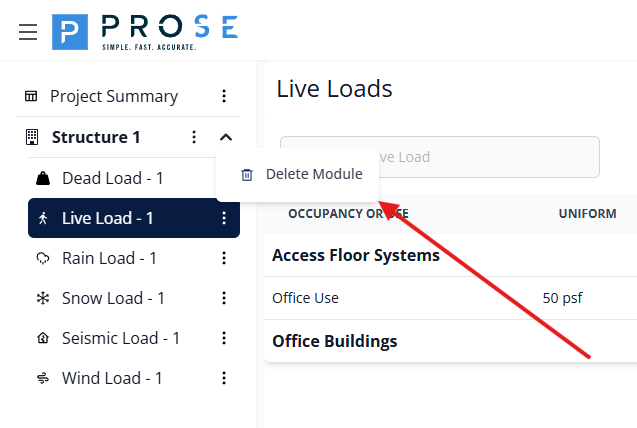
- Hover over the live load module in the left sidebar navigation
- Click the three-dot menu icon that appears
- Select Delete Module from the dropdown menu
- Confirm the deletion when prompted
Deletion is Permanent
Deleting a live load module removes all selected occupancy loads and cannot be undone. Export your data to PDF before deletion if you need to keep records.
Live Load Reduction Tracking
The module automatically tracks whether live load reduction is permitted for each selected occupancy type, based on ASCE 7-22 Section 4.7. This information is critical for structural calculations.
Reduction Permission Types
- LL Reduction Permitted: Indicates if tributary area reduction is allowed
- Multistory LL Reduction Permitted: Indicates if column/wall reduction for multiple floors is allowed
These permissions are automatically set based on ASCE 7 requirements and are displayed in both the summary view and PDF exports for documentation purposes.
PDF Export
Generate professional documentation of your selected live loads for project deliverables.
PDF Contents
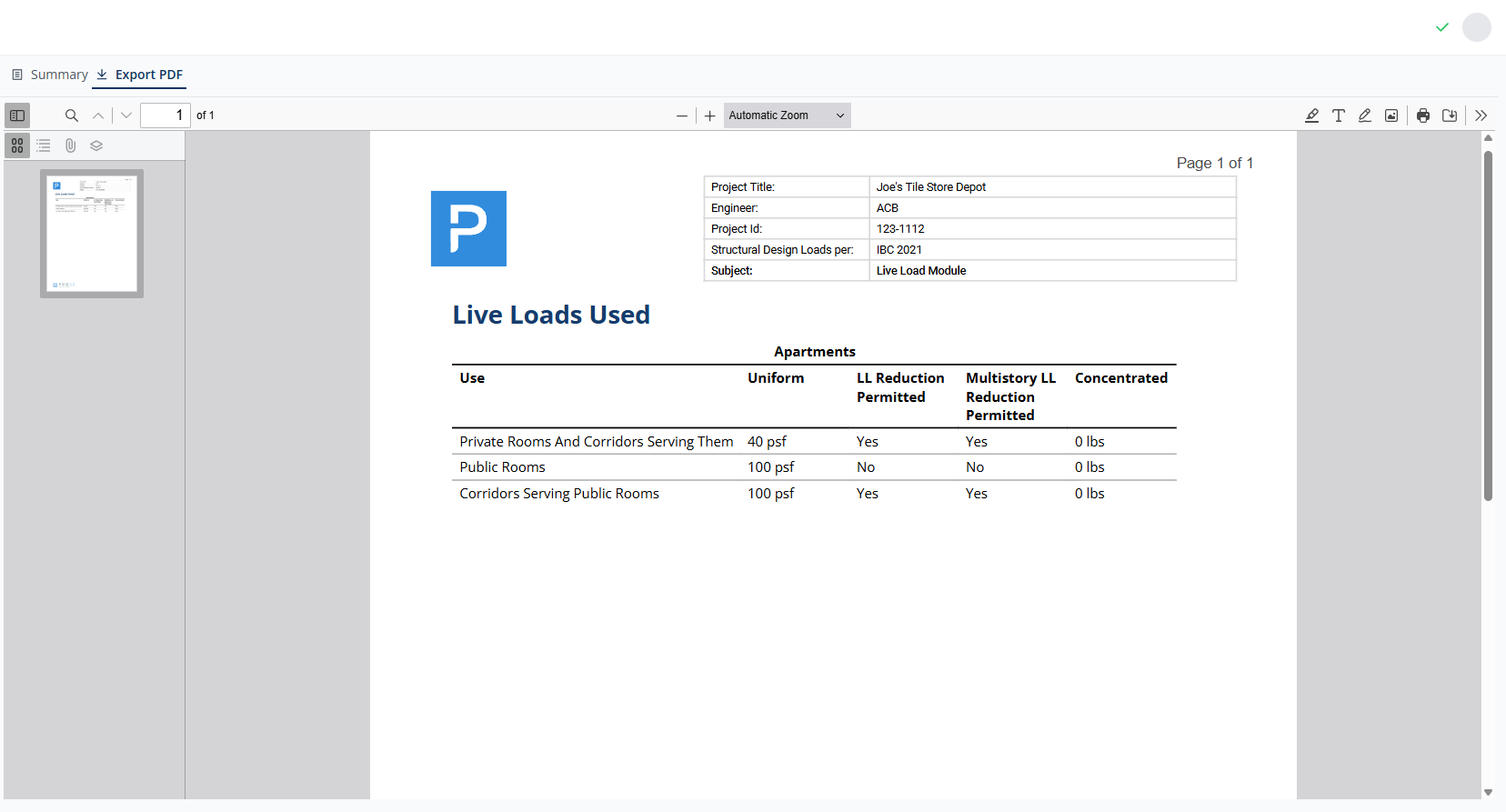
- Project Header: Includes project title, engineer, ID, and design code
- Company Branding: Prose Engineering logo and contact information
- Occupancy Details: All selected occupancies organized by category
- Load Values: Uniform loads, concentrated loads, and reduction permissions
- Professional Formatting: Tables and organized layout
- Page Numbering: Professional footer with attribution
Generating PDFs
- Click the Export PDF tab on the Live Load page
- Review the generated PDF in the embedded viewer
- Use the viewer controls to zoom, navigate, or print
- Click the Save button to download the PDF
Best Practices
See Also
For a complete load analysis workflow, see the Common Workflows guide. For troubleshooting issues, see the Troubleshooting guide.
Occupancy Selection
- Verify occupancy classification with building official and local codes
- Consider future use changes when selecting live loads
- Select all applicable occupancy types for mixed-use buildings
- Review ASCE 7 Section 4.3 for detailed occupancy descriptions
Load Reduction
- Note which occupancies allow live load reduction
- Document all load reduction assumptions in calculations
- Remember that reduction is NOT permitted for loads exceeding 100 psf
- Check ASCE 7 Section 4.7 for detailed reduction requirements
100 psf Threshold
Live load reduction is prohibited for uniform live loads greater than 100 psf, regardless of tributary area. Verify the "LL Reduction Permitted" column before applying reductions.
Documentation
- Export PDFs for record keeping and client review
- Include live load summary in structural calculation packages
- Check local amendments to ASCE 7 Table 4.3-1
- Document any special loading conditions or code interpretations
Code Reference
The Live Load module is based on ASCE 7-22 (Minimum Design Loads and Associated Criteria for Buildings and Other Structures):
- Table 4.3-1: Minimum Uniformly Distributed Live Loads
- Section 4.7: Live Load Reduction
- Section 4.8: Reduction in Live Loads for Storage Occupancies
- Section 4.9: Reduction in Roof Live Loads
The module's library-based approach ensures code compliance by using official ASCE 7 values, providing proper documentation for structural calculations and code review.